
.webp)
.webp)


%20(1).webp)








.webp)
Your product can look clean and still fail to convert.
If users are not signing up, booking demos, completing purchases, finishing onboarding, or coming back after their first session, the problem may not be your offer. It may be your user interface design.
Strong UI design principles help users understand what to do, where to click, what matters most, and how to complete an action without confusion. Weak UI does the opposite. It creates hesitation, extra steps, poor navigation, unclear CTAs, and drop-offs.
This guide explains 15 core UI design principles from a business point of view. Instead of only explaining what each principle means, we’ll show what happens when your product violates it — and how those issues affect conversions, retention, usability, and trust.
UI design principles are rules that help teams create clear, consistent, and easy-to-use digital interfaces. They guide how buttons, layouts, forms, menus, colors, spacing, and feedback should work across websites, mobile apps, SaaS platforms, and dashboards.
UI design principles affect conversions because they shape how easily users can understand a page and complete an action. Clear CTAs, simple forms, strong visual hierarchy, and smooth navigation can help more users sign up, book demos, complete purchases, or finish onboarding.
The most important UI design principles include visual hierarchy, consistency, simplicity, clarity, feedback, accessibility, user control, error prevention, recognition over recall, efficiency, affordance, proximity, contrast, mobile responsiveness, and learnability.
Your product may have poor UI design if users leave without taking action, abandon forms, struggle on mobile, ask repeated support questions, miss important features, or fail to complete onboarding. These are signs that your interface may be creating friction.
You should get a UI design audit when your product gets traffic but does not convert, when users drop off during key flows, or when your team keeps redesigning screens without knowing what is actually broken. A UI audit helps find the design issues hurting usability, conversions, and retention.
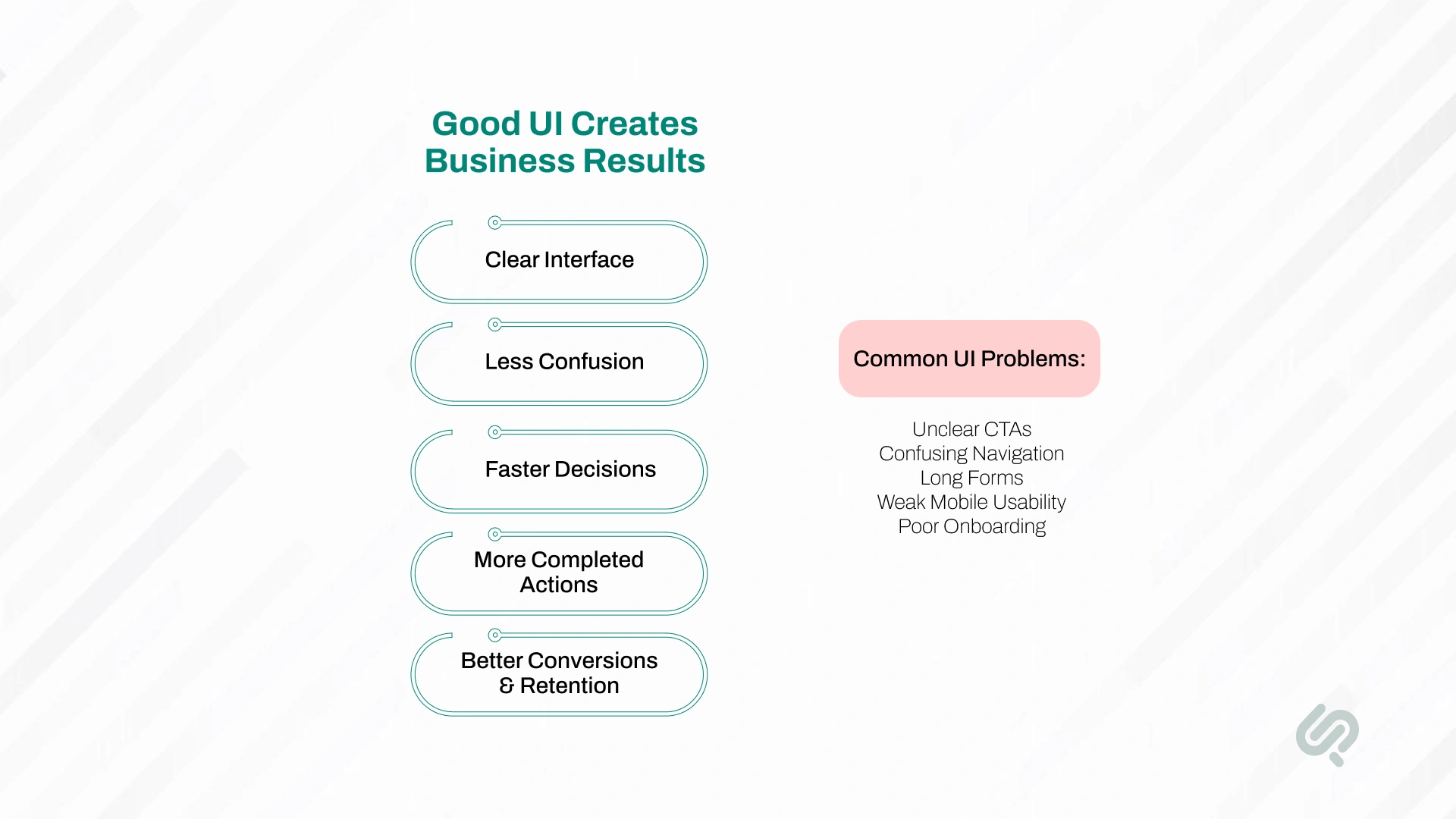
UI design principles matter because they help users complete actions faster and with less confusion. A good interface makes the next step clear, reduces friction, builds trust, and improves conversion paths across websites, SaaS platforms, mobile apps, dashboards, and ecommerce products.
If your product has traffic but low conversions, users may be struggling with:
That is why strong UI UX design is not just about visuals. It directly affects how users move, decide, and convert inside your product.
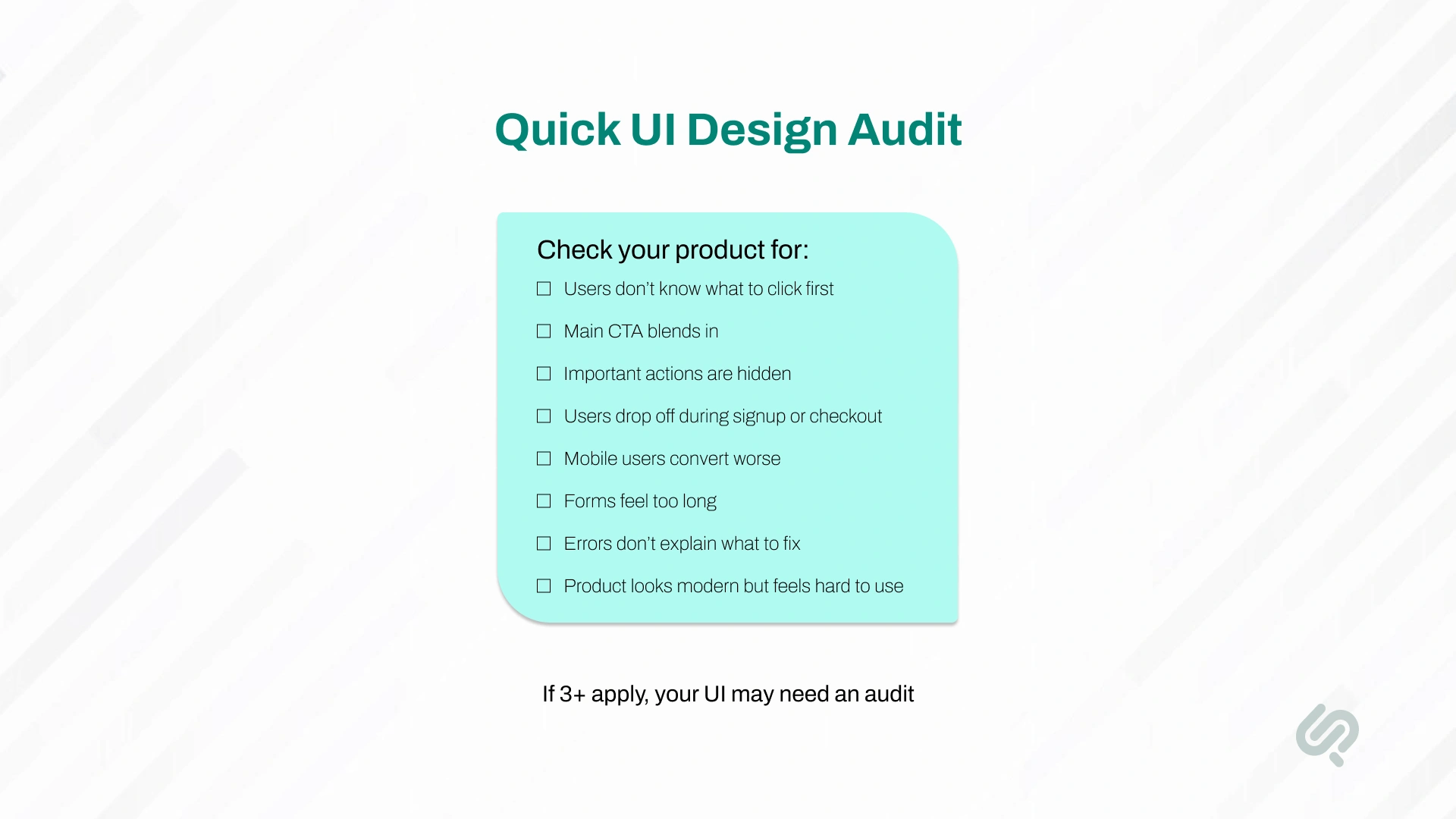
Use this checklist before reading the 15 principles. If you notice several of these issues, your product may need a UI design audit or UX audit.
A professional product usability audit helps identify which UI issues are blocking users and which fixes should be prioritized first.
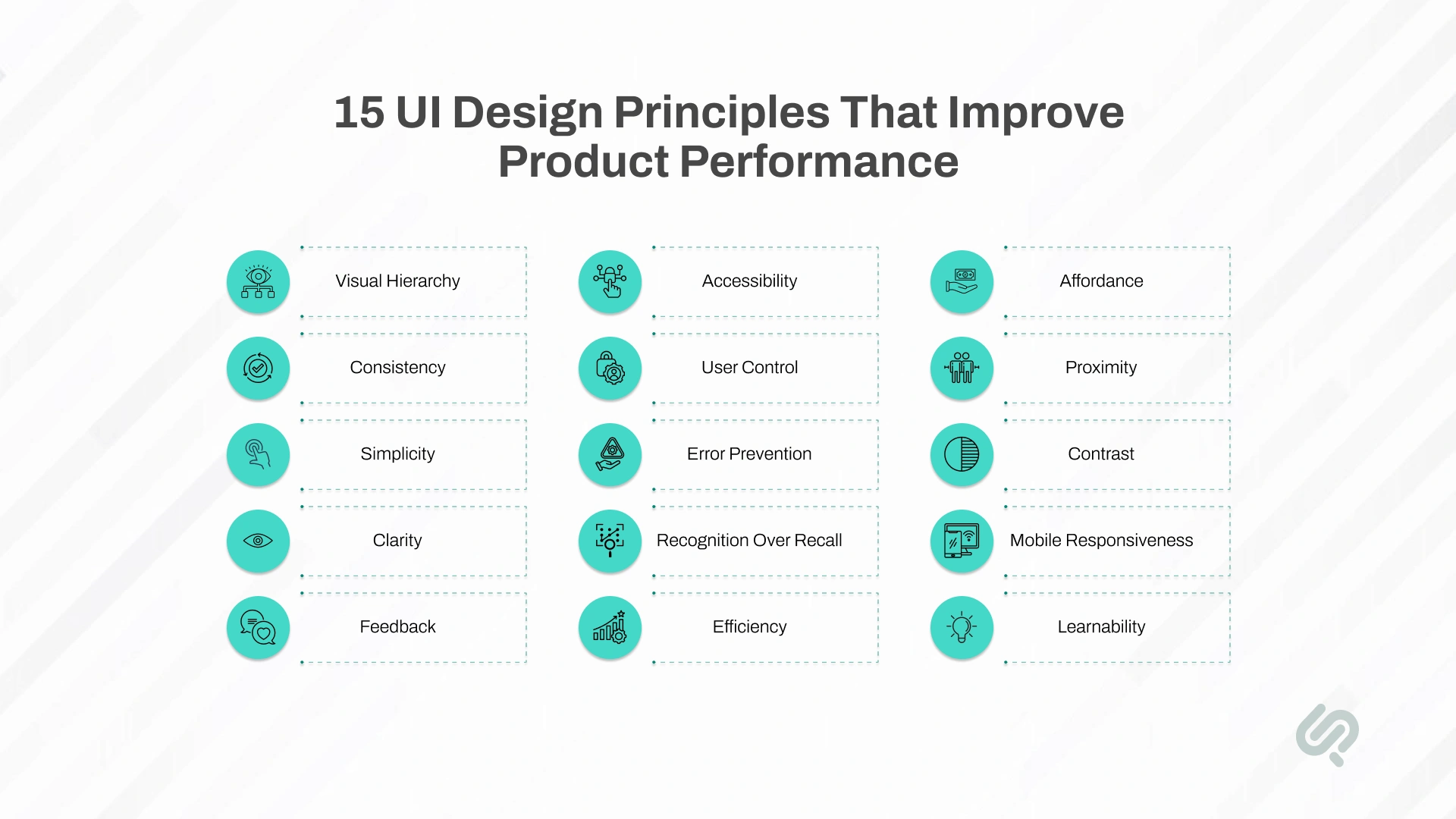
Each principle below is explained in three parts:
This helps you review your product like a quick UI audit, not just read design theory.
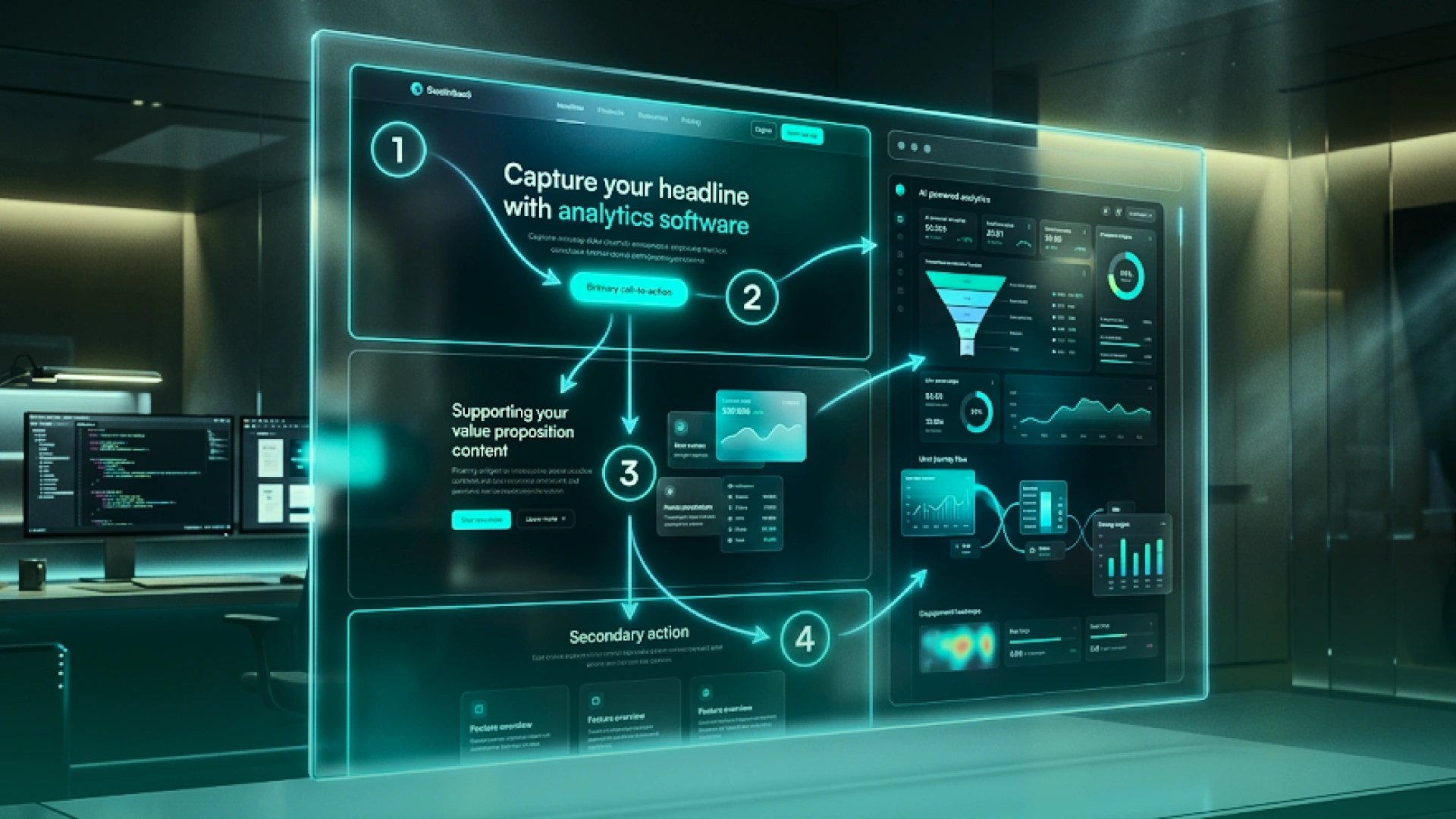
Visual hierarchy helps users understand what to focus on first, second, and third. It uses size, spacing, contrast, color, and placement to guide attention.
Users land on the page but do not know where to look. Your heading, CTA, image, pricing, and secondary links all compete for attention. This can reduce clicks, increase bounce rate, and make your product feel harder than it is.
Make the most important action visually stronger than everything else. Use one clear primary CTA, stronger heading structure, better spacing, and clear content order.

Consistency means similar actions, buttons, layouts, colors, and labels work the same way across your product.
Users have to relearn the interface on every screen. A button may look different in checkout, onboarding, and dashboard areas. This creates confusion and slows users down.
Use a consistent design system for buttons, forms, icons, navigation, labels, cards, modals, and messages. Consistency improves trust and makes the product easier to use.
Simplicity means every screen should focus on the action the user needs to complete.
Your page has too many options, too much text, too many buttons, or too many steps. Users feel overloaded and delay action.
Remove unnecessary elements. Keep each screen focused on one main goal, such as signing up, booking a call, completing checkout, or finishing onboarding.
Clarity means users can quickly understand what a page does, what information is needed, and what action comes next.
Users pause because labels, headings, forms, or CTAs are unclear. They may ask, “What does this mean?” or “What happens if I click this?”
Use clear labels, direct headings, plain button text, helpful form hints, and simple page copy. Replace vague CTAs like “Continue” with specific CTAs like “Create My Account” or “Book My Demo.”
Feedback tells users what happened after they clicked, submitted, saved, uploaded, deleted, or completed an action.
Users click a button and nothing seems to happen. They may click again, leave the page, submit duplicate requests, or lose trust in the product.
Add loading states, success messages, confirmation screens, progress bars, save indicators, and clear error messages. Every important action should give a visible response.
Accessibility means your interface can be used by people with different abilities, devices, screen sizes, and browsing needs.
This matters because accessibility issues are still common across the web. WebAIM’s 2024 report found that only 4.1% of the world’s top one million homepages were fully accessible, which means most websites still create barriers for users with disabilities. (1)
Some users cannot read text clearly, navigate with a keyboard, understand icons, or use your product on smaller screens. This can hurt usability, trust, and conversions.
Use readable font sizes, strong color contrast, clear labels, keyboard-friendly navigation, alt text, and accessible form fields. Accessibility improves the experience for all users, not only users with disabilities.
User control means users can undo actions, go back, edit details, cancel steps, and recover from mistakes.
Users feel trapped. They may be unable to change a selection, edit a form, cancel a process, or undo an action. This creates frustration and increases abandonment.
Add edit options, back buttons, cancel links, undo actions, confirmation prompts, and clear navigation paths.
Error prevention means designing the interface so users are less likely to make mistakes.
Users submit incomplete forms, enter wrong information, miss required fields, or make costly mistakes because the UI did not guide them.
Use inline validation, clear field labels, helpful placeholder text, disabled buttons until required fields are complete, and confirmation screens for important actions.
Recognition over recall means users should see useful options instead of having to remember information from another screen.
Users forget pricing details, selected plans, previous choices, product rules, or instructions. This slows decisions and creates friction.
Show selected choices, summaries, tooltips, saved preferences, recent actions, and visible navigation labels. Reduce the need for users to remember details.
Efficiency means users can complete common actions with fewer steps and less effort.
Users need too many clicks to complete a simple task. A signup, search, checkout, upload, or booking flow becomes longer than necessary.
Shorten flows, reduce required fields, add smart defaults, use autofill, group related actions, and remove repeated steps.
Affordance means users can understand how an element works by looking at it.
Users miss clickable elements because they look like plain text. Or they click things that look interactive but are not. This creates confusion and weakens usability.
Make buttons look like buttons. Make links clearly visible. Use familiar icons, hover states, shadows, borders, and spacing to show what users can interact with.
Proximity means related information and actions should be visually grouped.
Users struggle to connect labels with fields, buttons with forms, prices with features, or actions with the right content block.
Group related content together. Keep labels close to fields, CTAs close to relevant copy, and related settings inside the same section.
Contrast helps users notice important content, actions, and warnings.
Contrast is also a real accessibility issue, not just a visual preference. A 2026 audit of top web domains found that 40.9% of detected foreground/background color pairings failed WCAG contrast requirements for normal text. (2)
Your CTA, heading, alert, or pricing detail does not stand out. Users scan the page but miss the action you want them to take.
Use stronger contrast for primary CTAs, key messages, alerts, and selected states. Avoid using the same visual weight for every element.
Mobile responsiveness means your interface stays easy to use across phones, tablets, laptops, and desktops.
Buttons become hard to tap, forms feel cramped, menus become confusing, and users leave before completing the action.
Mobile usability also depends on speed. Google has reported that 53% of users abandon mobile pages that take longer than three seconds to load, and a one-second delay can reduce sales conversions by up to 20%. (3)
Design mobile layouts separately, not as an afterthought. Use larger tap targets, shorter forms, sticky CTAs, readable text, and simplified navigation.
Learnability means users can understand how to use your product without needing long instructions.
New users get stuck during onboarding, miss important features, or leave before reaching the product’s value.
Use guided onboarding, empty states, tooltips, helpful defaults, short walkthroughs, and clear first actions. The goal is to help users reach value faster.
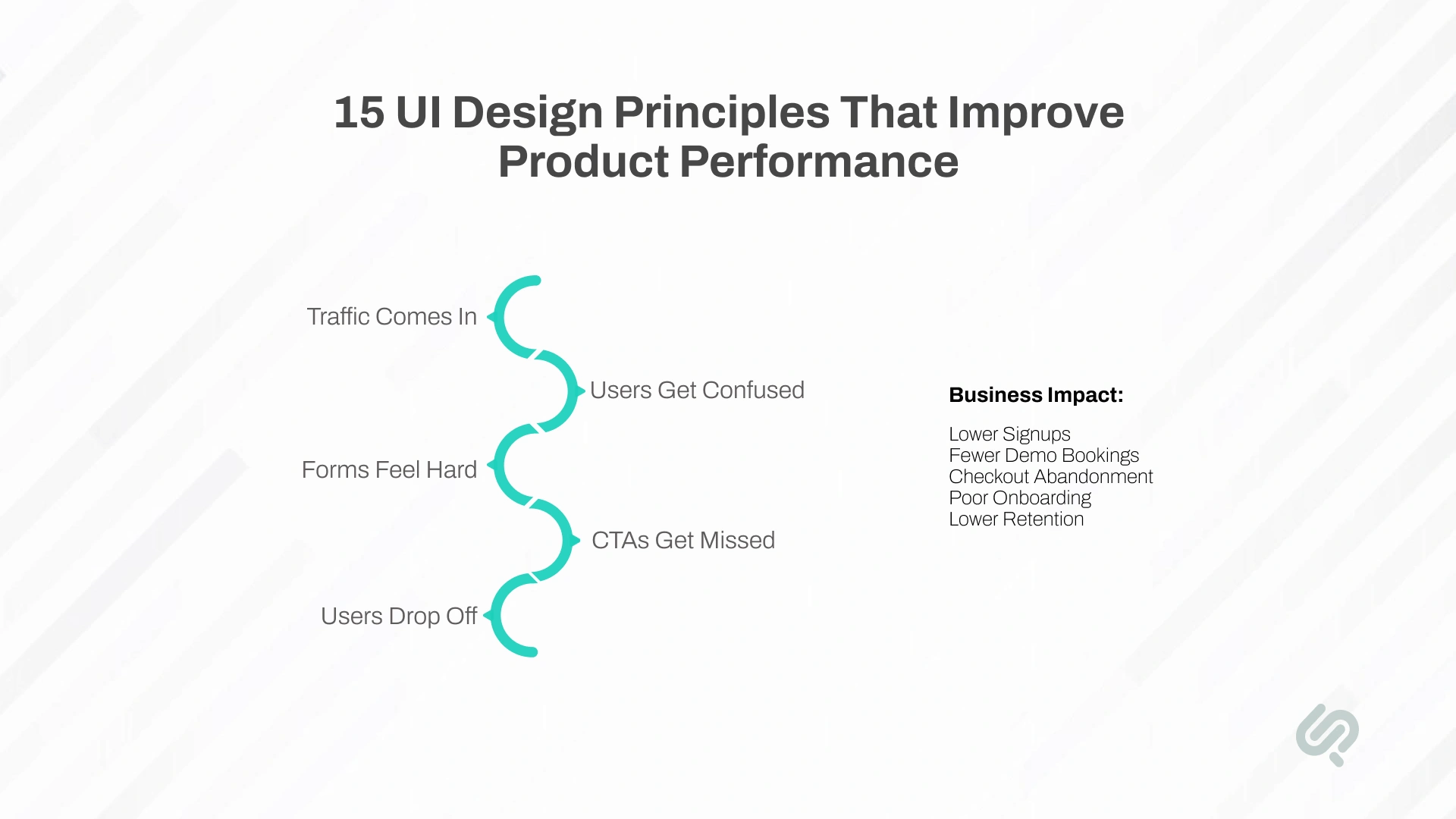
When a product violates too many UI design principles, users may still visit the page — but they do not move forward.
Common business problems include:
This is why UI UX design services should not only focus on how a product looks. Good design should make the product easier to understand, easier to use, and easier to convert through.
You may need a UI design audit or UX audit if your product is getting traffic but users are not taking action.
Here are the clearest signs:
A product usability audit helps identify the exact screens, flows, and UI issues that are causing drop-offs. It also helps your team prioritize fixes based on user impact, not personal opinions.
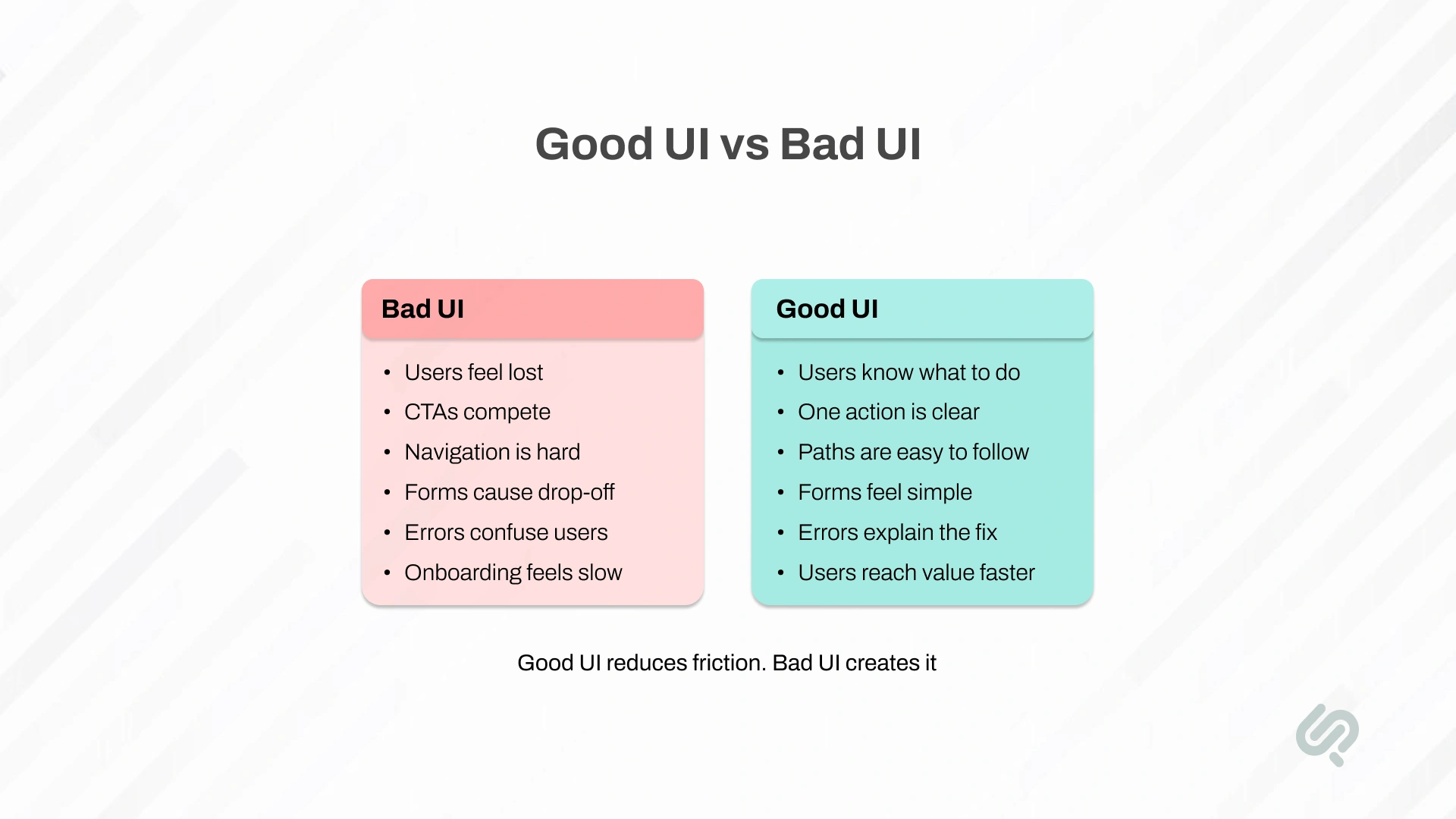
“Good UI does not make users think harder. It removes confusion, makes the next step obvious, and helps people complete actions with confidence.”
— Mujtaba Sheikh, Head of Design, Phaedra Solutions
Here’s how that difference shows up in real product behavior:
Good UI design reduces friction. Bad UI design adds friction at every step.
Phaedra Solutions designed and developed an esports tournament platform built for players, teams, organizers, sponsors, and admins.
The platform needed to support tournament management, team creation, player profiles, matchmaking, scrim ladders, event hosting, and admin controls. Because several user types were using the same product, the interface needed clear hierarchy, predictable flows, strong feedback, and simple navigation.
Core UI principles applied included:
The result was a more structured esports platform that improved team coordination, tournament management, matchmaking, and community interaction.

AI is changing how teams review, design, and improve digital products. Instead of relying only on manual screen reviews, teams can now use AI-assisted tools to check layouts, compare user flows, identify repeated UI patterns, and create faster design variations.
This does not replace human designers. It makes the design process faster and more structured. AI can help detect common issues, but human designers still need to decide what makes sense for the user, the product, and the business goal.
This shift is already showing up in design tools. Figma has expanded its AI and MCP capabilities so AI models can access the underlying code behind prototypes instead of only interpreting static visuals (4). This shows how design, development, and AI-assisted product workflows are starting to merge.
In UI/UX design, AI-first workflows are useful for:
The biggest value of AI-first design is speed with structure. Product teams can review more screens, test more options, and find usability issues earlier. But the final design decisions still need human judgment, user understanding, and business context.
For product owners, this means UI/UX work can become more practical. Instead of waiting weeks to understand what is wrong, teams can move faster from audit to insight to improvement.
Good UI design is not just about making your product look better. It is about helping users understand what to do, complete key actions, and move through your product without confusion.
If your website, app, SaaS platform, or dashboard looks good but users are still dropping off, the problem may be hidden inside your interface.
Phaedra Solutions helps teams audit, redesign, and improve digital products with conversion-focused UI UX design services. As an AI-first digital engineering partner, we combine AI-assisted UX reviews with human design expertise to find usability issues faster and create a clear roadmap for improvement.



Areesha is a content writer with over 2 years of experience in writing about tech and digital trends. She focuses on topics like AI, remote work, and productivity.
Her blogs have helped startups grow their content reach and improve lead generation. She writes with a focus on clarity, simplicity, and reader value.